1. Export an Audition marker file from Notetracks Pro
To export markers and comments from Notetracks Pro, click the Download button in your active session and select "NoteTracks.com > Audition Markers (.csv)".
2. Use the "Konwerter znaczników" to convert the Audition marker file into a CSV file
Open the free Konwerter znaczników, select "Audition" and set "convert" to "CSV for Google Sheets". Generate and download the file. Jeśli masz problemy z konwersją pliku, możesz skontaktować się z bezpłatną pomocą techniczną.
3. Import the CSV file into Google Sheets
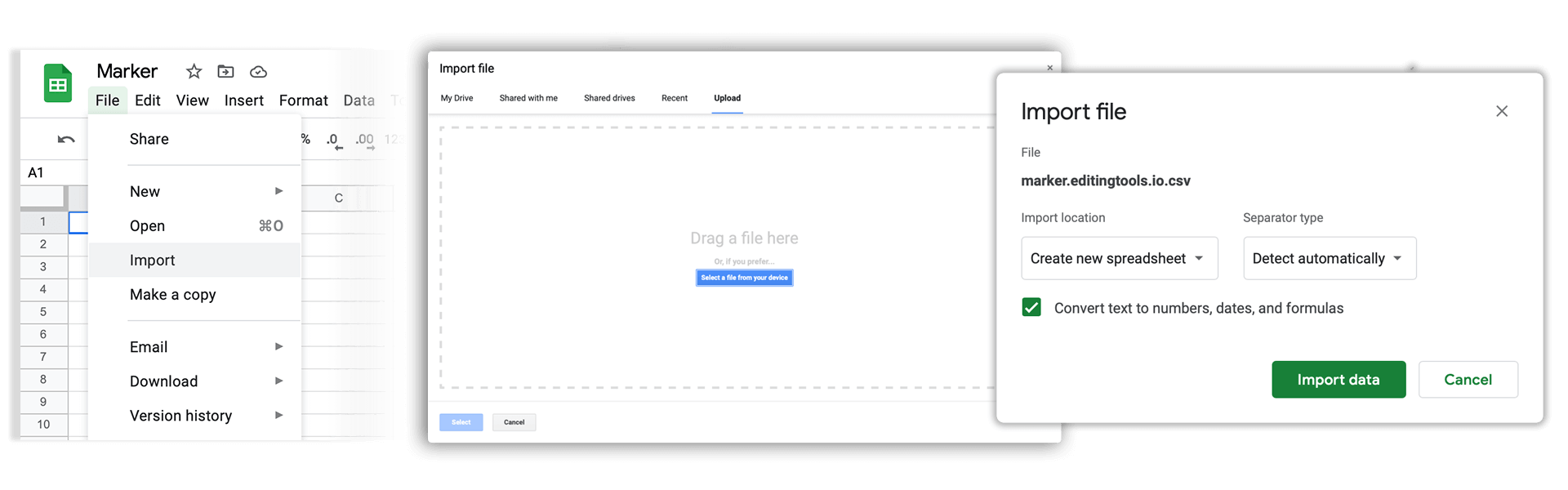
Open Google Sheets and go to "File -> Import". Upload the generated CSV file and press "Import Data" to generate the Sheet with all markers.
🚀 Gotowe
To na razie wszystko! Jeśli ten samouczek okazał się przydatny, udostępnij go, aby nas wesprzeć. Jeśli masz sugestie, jak moglibyśmy usprawnić ten przepływ pracy, daj nam znać!